Module 1: Git and GitHub Fundamentals
Introduction: What Are Git and GitHub?
- Git is a powerful distributed version control system (DVCS). It's the core tool that runs on your machine to track changes, manage project history, and collaborate.
- GitHub is a popular web-based service that hosts your Git repositories. It provides a cloud-based home for your code, plus a suite of tools for collaboration, issue tracking, and code review.
- The Repository (or "repo") is the heart of your project. It's the data structure—essentially a project folder—that contains all your project's files and the entire history of changes made to them.
The Power of Branching
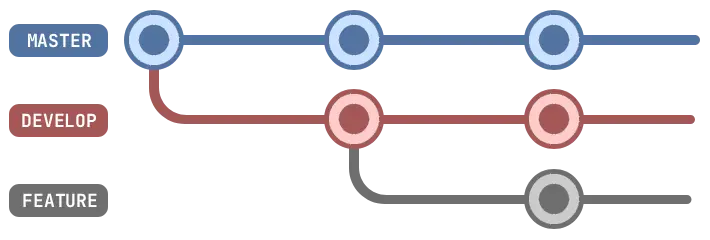
A core concept in Git is branching. Think of your project's history as a single timeline. The main branch represents the official, definitive source of truth, which should ideally always contain stable, deployable code.
Instead of editing main directly, you use a branching workflow:
- Create a Branch: When starting a new feature or bug fix, you create a new branch. This is like a parallel, independent timeline of your project.
- Commit Changes: As you work, you save your progress by creating commits. A commit is a snapshot of your project at a specific point in time, accompanied by a descriptive message.
- Open a Pull Request (PR): When your feature is complete, you open a Pull Request on GitHub. This is a formal request to merge your changes from your feature branch back into the
mainbranch. - Review and Merge: Your team can now review your code, provide feedback, and approve the changes. Once approved, your branch is merged, integrating your new feature into the main codebase.
Module 2: Workflows and Commands
Common Git Workflows
Your workflow in Git depends on whether you're starting a new project or joining an existing one.
Starting a New Project:
- Initialize a new local Git repository (
git init). - Add and commit your project's initial files.
- Create a new remote repository (e.g., on GitHub).
- Link your local repo to the remote one (
git remote add origin <url>). - Push your local
mainbranch to the remote repository.
Contributing to an Existing Project:
- Clone the remote repository to your local machine.
- Create a new branch for your changes (
git switch -c new-feature). - Make your edits, add the files, and commit them.
- Push your committed branch to the remote repository.
- Open a Pull Request on GitHub to merge your branch into
main.
Cloning vs. Forking:
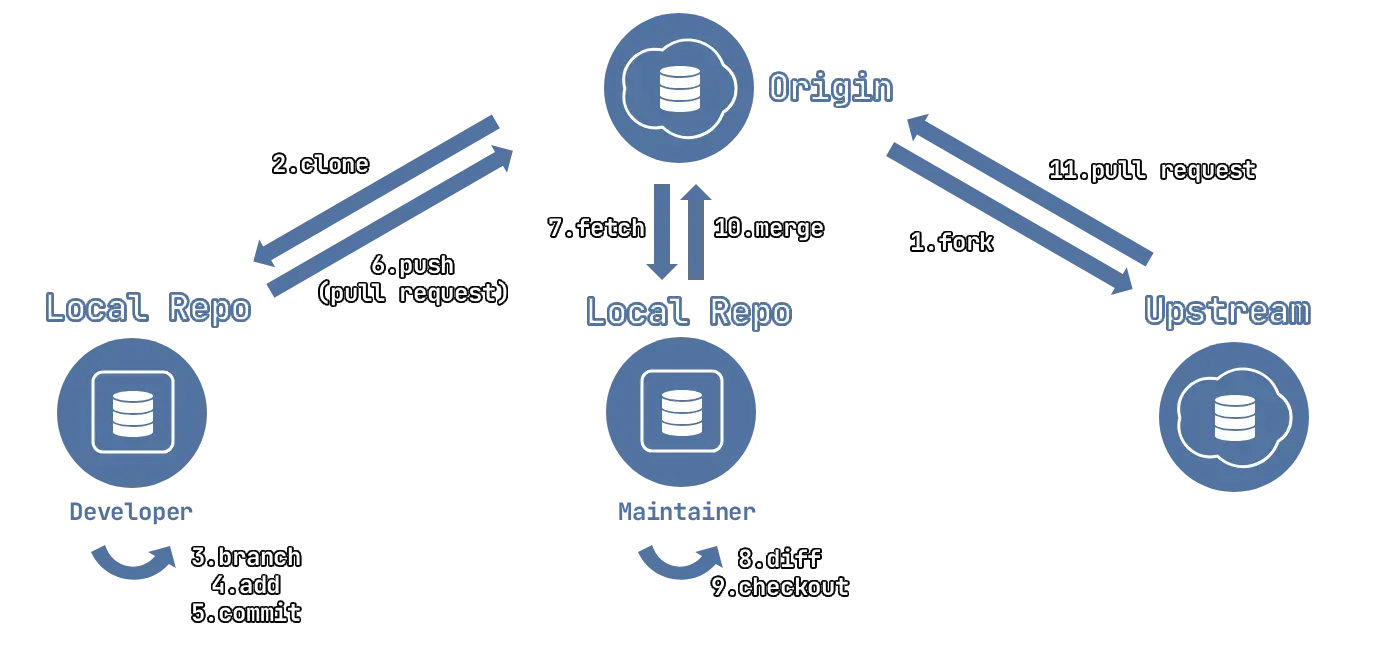
Cloning creates a direct local copy of a remote repository that you have write access to.
Forking creates a new repository under your own GitHub account. You do this when you want to contribute to a project you don't have write access to (like an open-source project).
The typical Fork & PR workflow is:
- Fork the original repository on GitHub.
- Clone your fork to your local machine.
- Create a branch, make changes, and push to your fork.
- Open a Pull Request from your fork's branch to the original repository's
mainbranch.
Essential Git Command Reference
Here is a quick reference for the most common Git commands.
Starting a Project:
mkdir <dir>– Create a new directory.cd <dir>– Navigate into the directory.git init– Initialize a new, empty Git repository.
Basic Workflow (Add & Commit):
git status– Show the status of your working directory.git add <file>– Stage a specific file for a commit.git add .– Stage all new and modified files.git restore --staged <file>– Unstage a file.git restore <file>– Discard all local changes in a file.git commit -m "message"– Save staged changes as a new commit.
Viewing History:
git log– Show the project's commit history.git diff– Show unstaged changes.git diff --staged– Show staged changes (ready to be committed).git diff <commit1> <commit2>– Show differences between two commits.
Branching & Merging:
git branch– List all local branches.git branch <name>– Create a new branch.git switch <branch>– Switch to an existing branch.git switch -c <name>– Create and switch to a new branch.git merge <branch>– Merge the specified branch into your current branch.git rebase <branch>– Re-apply commits from your current branch onto another.git branch -d <branch>– Safely delete a local branch.git branch -D <branch>– Force delete a local branch.
Stashing (Saving Changes Temporarily):
git stash– Temporarily shelve changes you're not ready to commit.git stash list– List all stashes.git stash pop– Apply the most recent stash and remove it from the list.git stash apply– Apply the most recent stash but keep it in the list.git stash clear– Delete all stashes.
Undoing Changes:
git reset --hard <commit>– Discard all local changes & move HEAD to a specific commit. (Use with caution!)git revert <commit>– Create a new commit that safely undoes the changes from a previous commit.
Remote Repositories (GitHub):
git clone <url>– Download a complete copy of a remote repository.git remote -v– View all configured remote repositories.git remote add origin <url>– Link your local repository to a remote one.git fetch origin– Download all changes from the remote without merging.git pull origin <branch>– Fetch changes and merge them. (pull=fetch+merge)git push -u origin <branch>– Upload your branch and set it as the upstream.git push origin --delete <branch>– Delete a branch from the remote.
Key Terminology
A glossary of essential terms, grouped by concept.
Fundamental Concepts:
| Term | Definition |
|---|---|
| Version Control | A system that tracks and manages changes to files over time. |
| DVCS | Distributed Version Control System. A system where every developer has a full copy of the entire project history. Git is a DVCS. |
| Git | The free, open-source distributed version control system tool. |
The Repository:
| Term | Definition |
|---|---|
| Repository | The data structure containing all project files and their complete version history. |
| Working Directory | The local directory on your computer containing the project files. |
| Staging Area | An intermediate area where you group changes before committing them. |
| Branch | An independent line of development. |
| Main Branch | The default branch, which serves as the definitive, deployable version of your code. |
Saving Changes:
| Term | Definition |
|---|---|
| Commit | A snapshot of your project's state at a specific point in time. |
| Merge | The process of combining changes from one branch into another. |
Remote & Collaboration:
| Term | Definition |
|---|---|
| GitHub | A popular web-based hosting service for Git repositories. |
| GitLab | A competing web-based DevOps platform that also provides Git repository hosting. |
| Remote | A version of your repository hosted on the internet or a network (e.g., on GitHub). |
| Origin | The default name Git gives to the remote repository you cloned from. |
| Upstream | The original repository that you forked or cloned from. |
| Clone | To create a complete local copy of a remote repository. |
| Fork | A personal copy of someone else's repository that lives in your own GitHub account. |
| Pull Request (PR) | A request to merge your changes from your branch (or fork) into another repository's branch, enabling code review. |
| SSH Protocol | A secure method for authenticating and communicating with a remote server. |
People & Processes:
| Term | Definition |
|---|---|
| Developer | A programmer responsible for writing and committing code. |
| Continuous Integration (CI) | A practice where developers frequently merge code, often triggering automated builds and tests. |
| Continuous Delivery (CD) | The automated movement of software through the development lifecycle, from commit to production. |